
Getting Started
for iPhone
Getting Started
for iPhone
Using eSIM's can be a little un-nerving, particularly if it's your first one. We've provided the below guides to install the SIM, test it and say goodbye to payment anxiety.
Using eSIM's can be a little un-nerving, particularly if it's your first one. We've provided the below guides to install the SIM, test it and say goodbye to payment anxiety.
Install the eSIM
Install the eSIM
Scannable from a QR code to get you up and running in minutes
Scannable from a QR code to get you up and running in minutes
Test it
Test it
Giving things a quick go to make sure things are working
Giving things a quick go to make sure things are working
Connect when needed
Connect when needed
Knowing how to quickly use Unbounded when taking payments
Knowing how to quickly use Unbounded when taking payments
Install the eSIM
Install the eSIM
Install the eSIM
Step 1
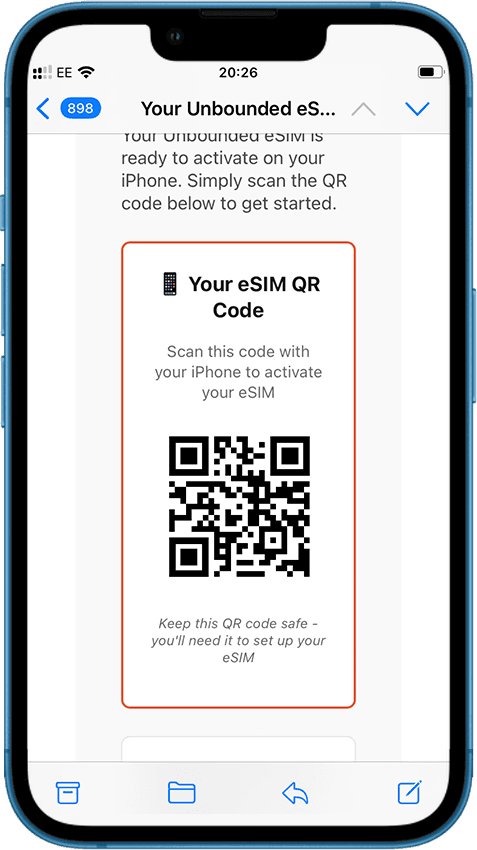
Press and hold the QR code in our email, then tap ‘Add eSIM’. Or, scan the QR code with your phone’s camera using another device.
Step 2
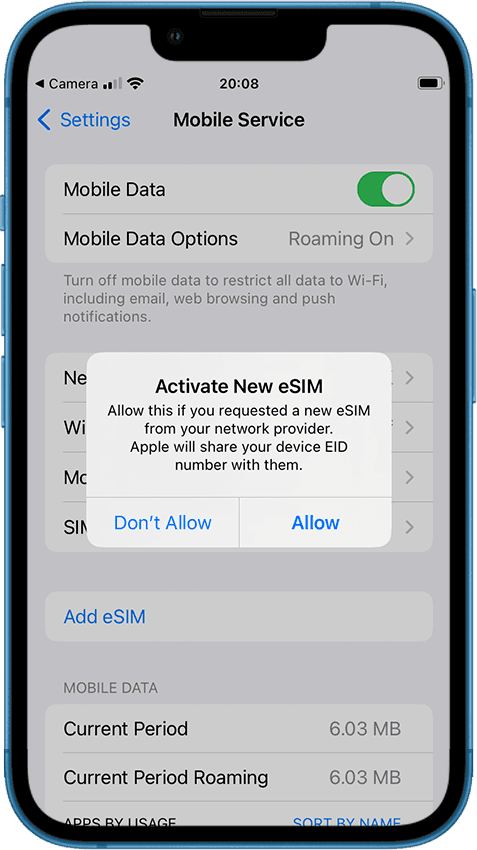
Tap ‘Allow’ to begin installing your eSIM.
Step 3
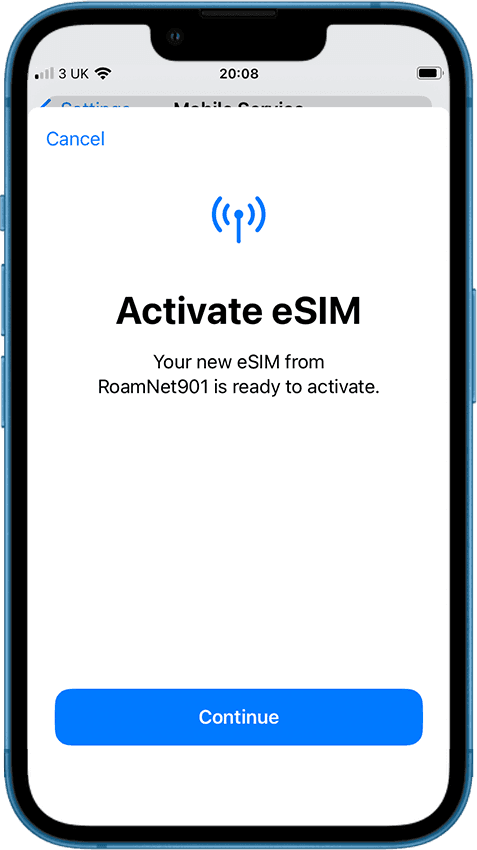
Tap 'Continue'
Step 4
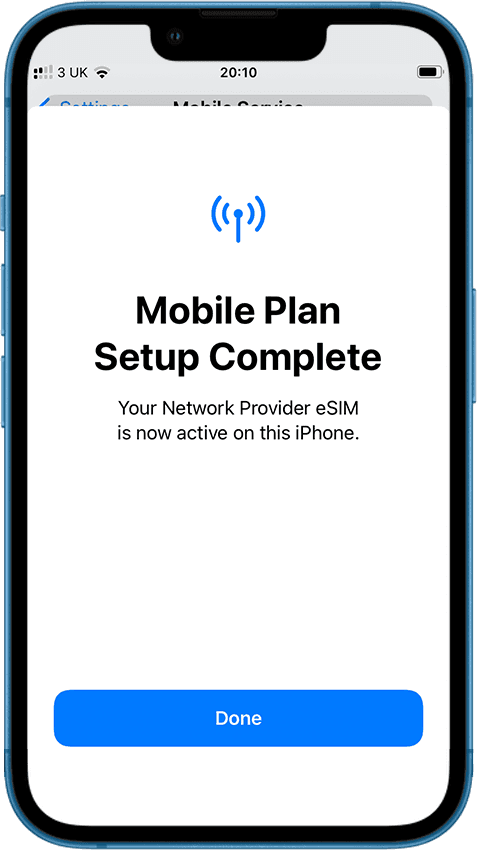
Installation takes a few minutes. Once done, you’ll see 2 signal bars at the top of your screen.
Step 5
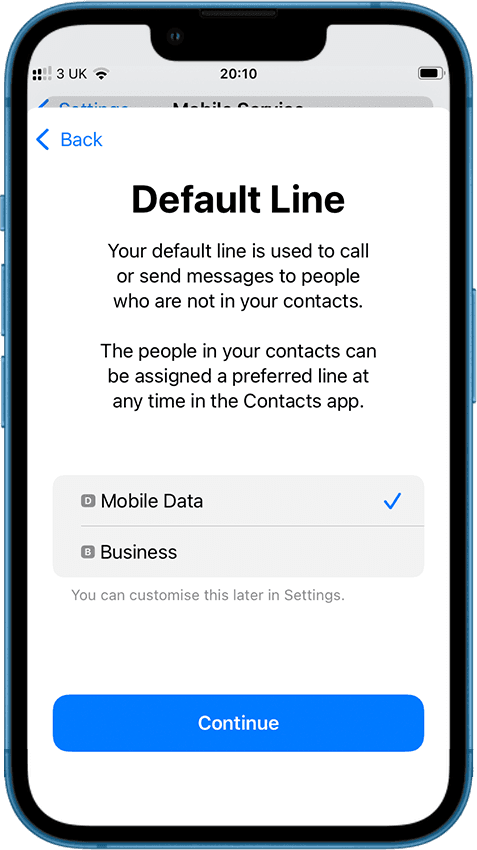
When asked which SIM to use for calls, choose your existing SIM (the first one on the list), not your Unbounded eSIM.
Step 6
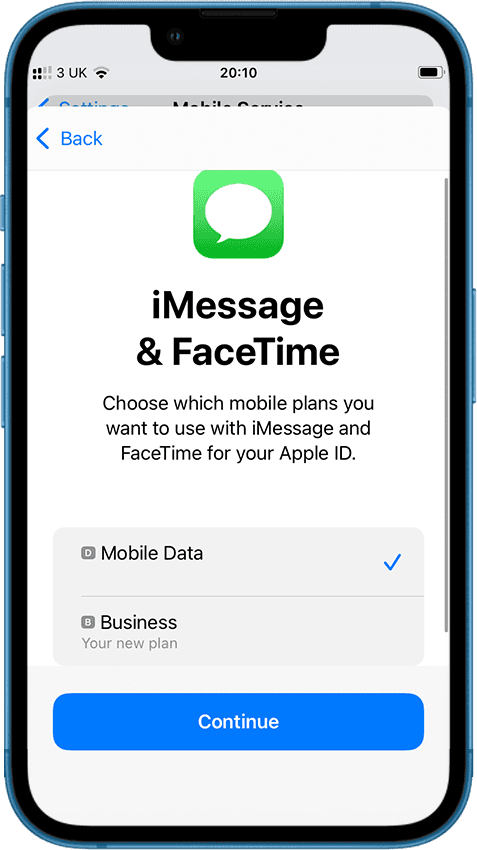
You’ll then be asked the same for iMessage and FaceTime—select your existing SIM (the first one on the list).
Step 7
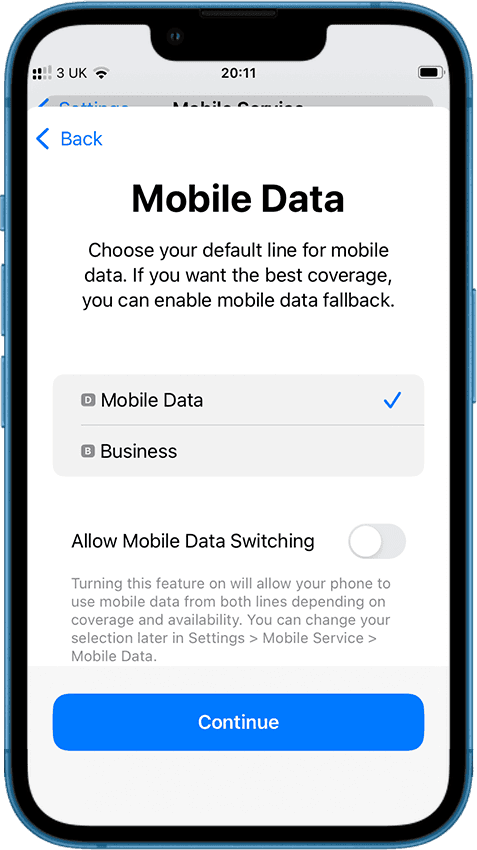
For Mobile Data, choose your existing SIM for normal data use.
Step 8
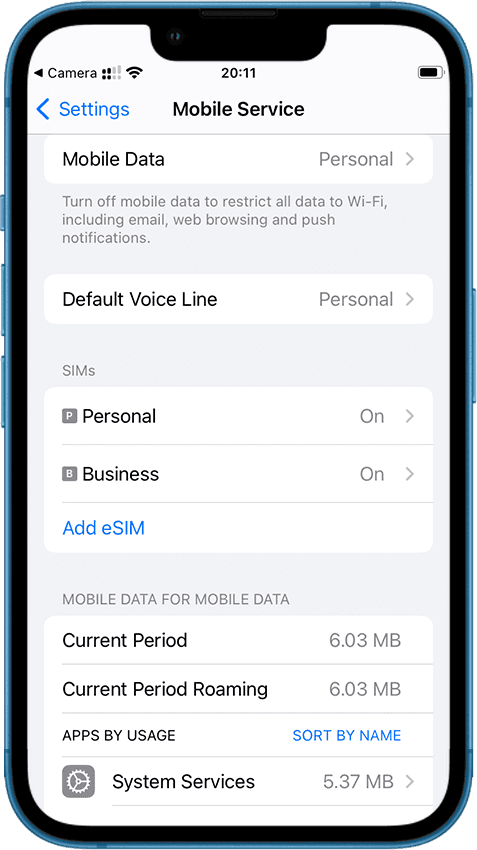
On the ‘Mobile Service’ page, tap your Unbounded SIM (the second one on the list) to configure it.
Step 9
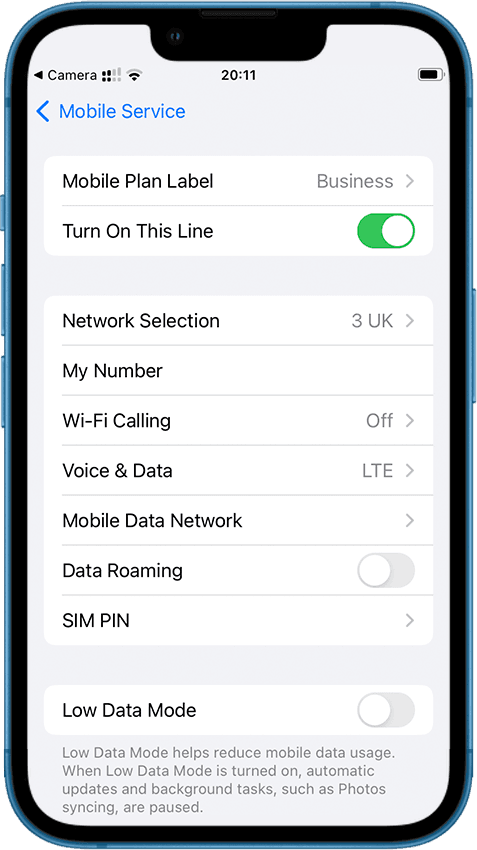
Tap to turn Data Roaming 'on'.
Step 10
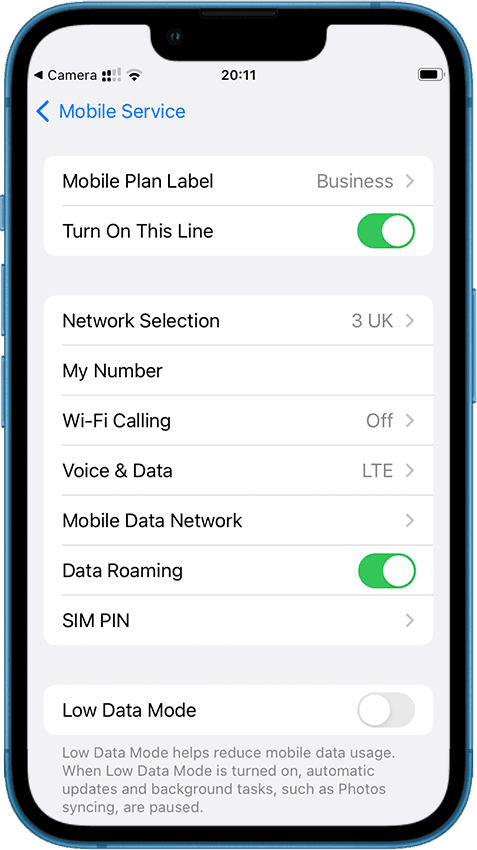
Tap 'Mobile Data Network'
Step 11
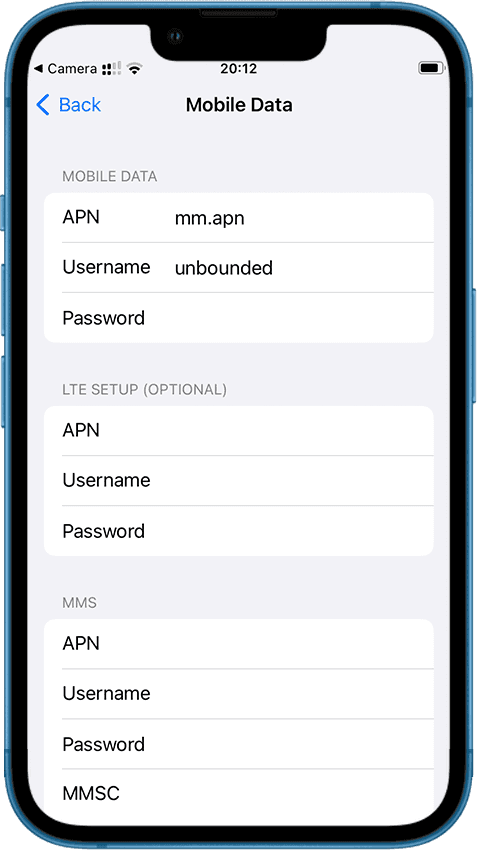
Put mm.apn in the top field, and unbounded in the second field. Then press back.
Step 12
Tap on 'Mobile Plan Label'
Step 13
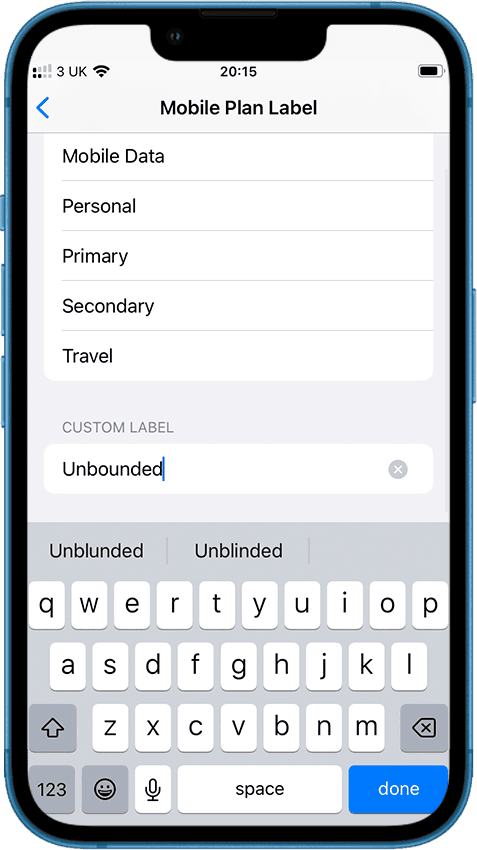
Add a Custom Label called ‘Unbounded’, then tap ‘Back’. Your Unbounded SIM is now installed and ready to go!
Test it
Test it
Test it
Step 1
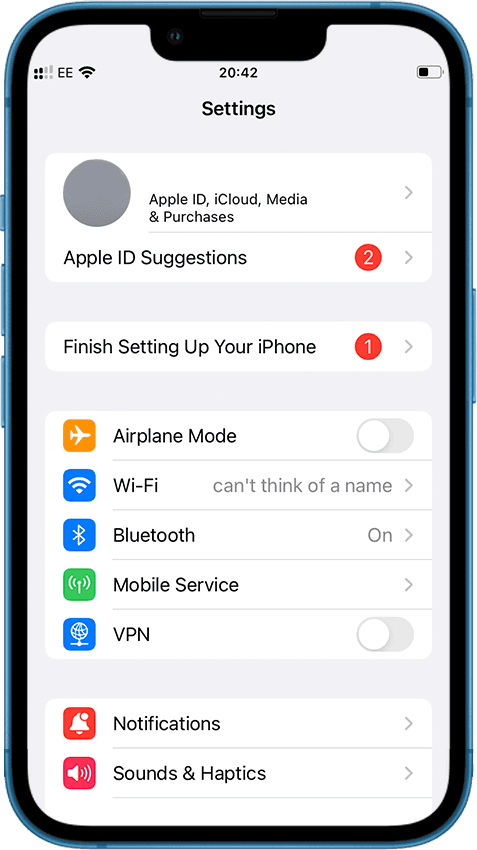
Open Settings and tap on 'Mobile Service'
Step 2
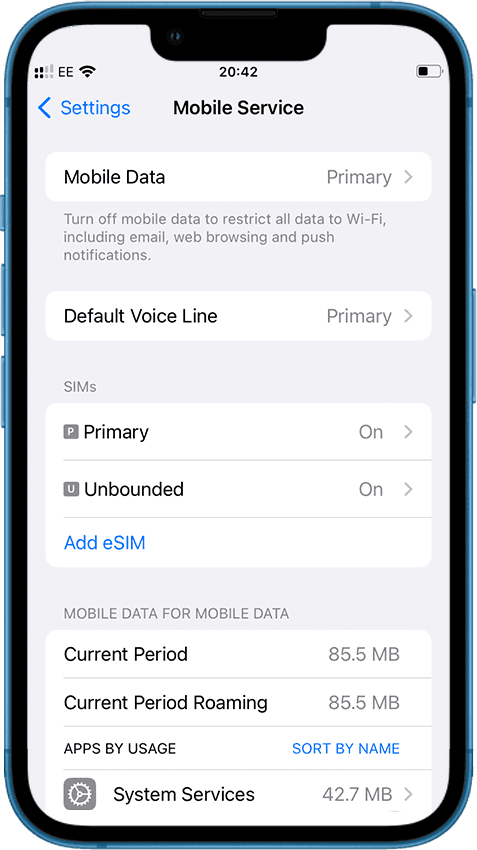
Tap on 'Mobile Data'
Step 3
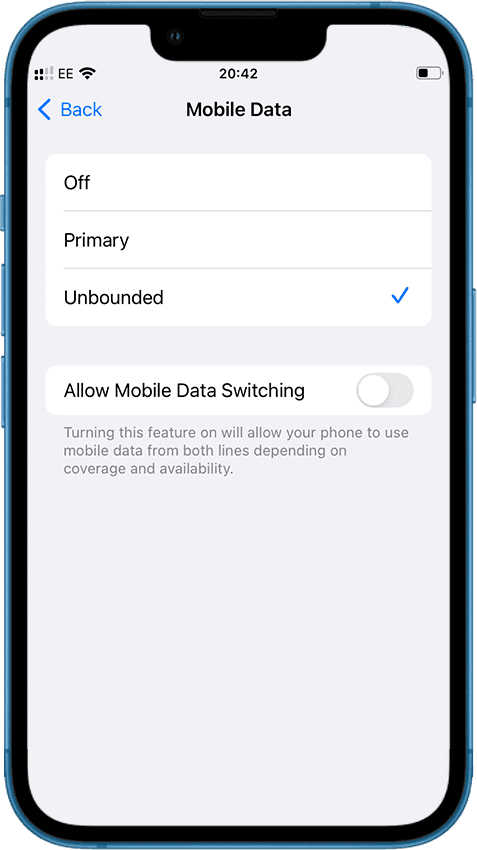
Select your Unbounded SIM. This sets your data connection be on the SIM
Step 4
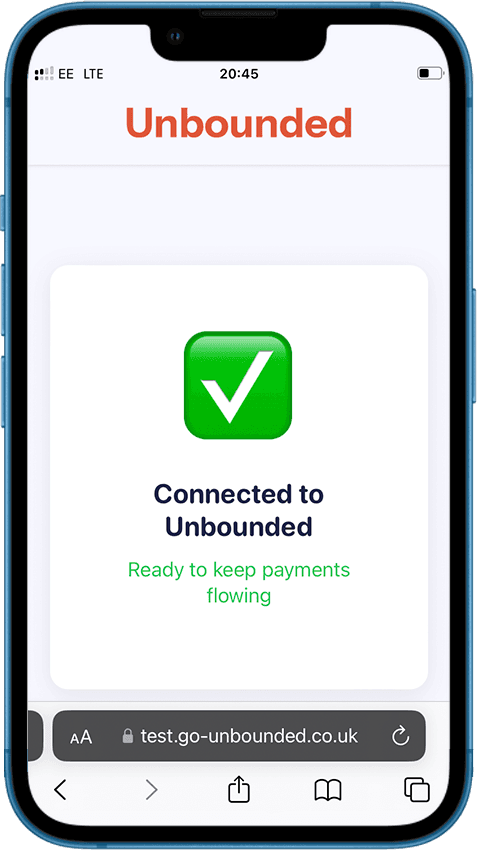
Go to www.test.go-unbounded.co.uk . If you see a green tick, you're connected.
If you see a red x you're using another data source. If data does not connect, please review the installation instructions.
Step 5
Test complete, go back to Settings - and tap Mobile Service.
Step 6
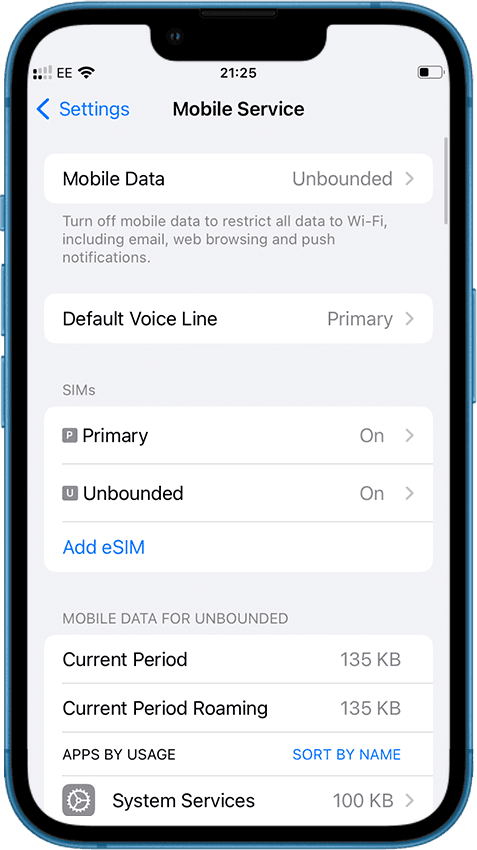
Tap on Mobile Data
Step 7
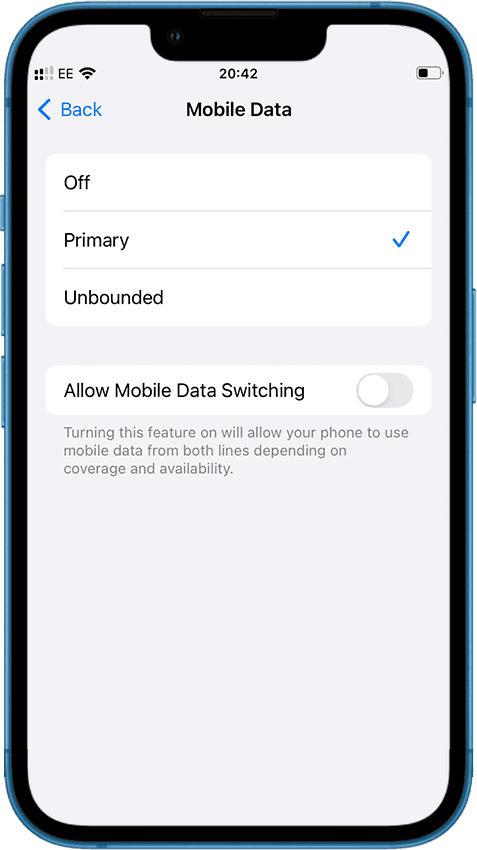
Move your data back to your main SIM.
Connect when needed
Connect when needed
Connect when needed
Step 1
Open Settings and tap on 'Mobile Service'
Step 2
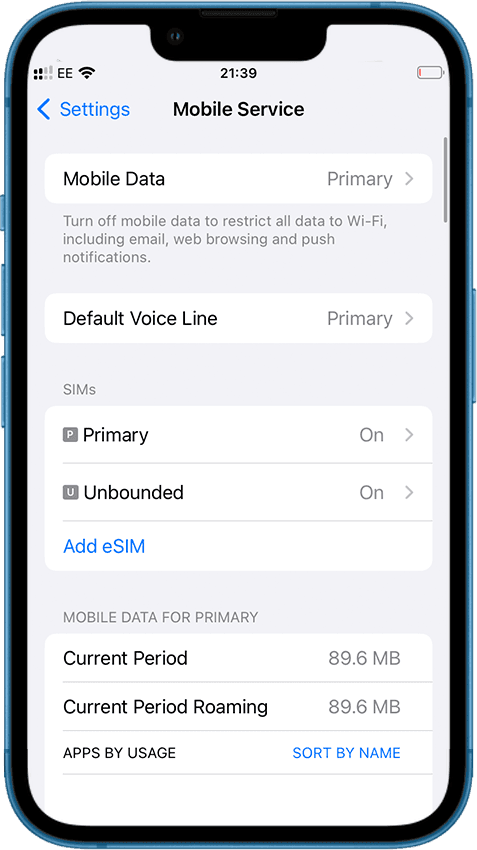
You can change your data source to Unbounded, by tapping Mobile Data
Step 3
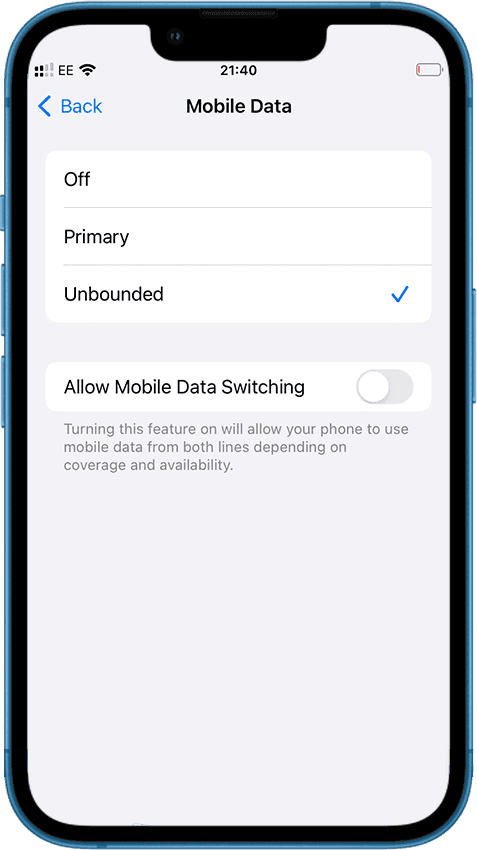
Select Unbounded to use its data. Select your other SIM card when you've finished taking payments.

Connect to more
Connect to more
© 2025 Go Unbounded Ltd